
Printing the Photo Displayed on the LCD (Display photo)
Solution
Select a photo from the memory card and specify the number of copies to print.
1. Prepare for printing.
1-1. Turn on the machine.
1-2. Load paper.
2. Insert the memory card.
2-1. Press the MEMORY CARD button.
2-2. Insert the memory card into the Card Slot.
3. Select the print menu.
3-1. Use the  or
or  button to select Display photo, then press the OK button.
or button to select Display photo, then press the OK button. The photo selection screen is displayed.
NOTE
-
 may be displayed on the LCD while reading the photo.
 - When you print photographs saved on a memory card, you can specify various layouts on the screen that appears when you select Special photo print in the memory card menu.
4. Select the photo to print.
4-1. Use the or button to display a photo to print.
or button to display a photo to print.NOTE
Changing the Display
You can change the way that photos are displayed when Display photo is selected. To
change the display, press the OK button.
Full-screen view: Shows one photo at full-screen.
Enlarged view: Shows one photo magnified four times. Move the area to show using the
 ,
,  ,
,  , or
, or  button.
Slide show: Shows next photos automatically.
To return to the regular display mode, press the OK button.
4-2. Press the Color button.
The print confirmation screen is displayed.
5. Start printing.
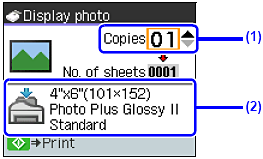
5-1. Use the or button or the Numeric buttons to specify the number of copies.
or button or the Numeric buttons to specify the number of copies.5-2. Confirm the page size, media type, and other settings.
NOTE
To change page size, media type, and other settings, press the Settings button.
5-3. Press the Color button.
The machine starts printing.
NOTE
- To cancel printing, press the Stop/Reset button.
- Printing does not start if you pressed the Black button.