
How to capture photo(s) from the from your favorite scenes in the videos you have taken
Solution
You can capture a single photo or a series of photos from a previously recorded scene. The size of the captured photo(s) will be [MW 1920x1080] and it cannot be changed, but you can select the photo quality.
1.Turn on the camcoder and set it to the movie playback mode.
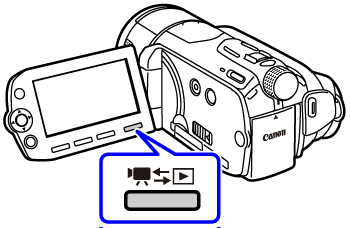
2.Press <  > .
> .
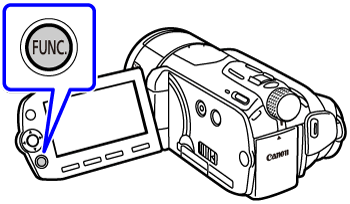
> .
3.To select the photo capture settings
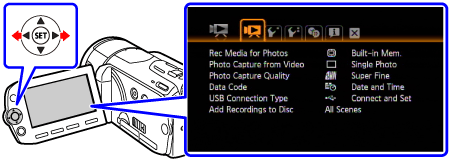
3-1.Select [  Menu ] and press <
  > to open the setup menus.
Menu ] and press < > to open the setup menus.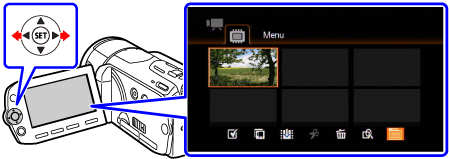
3-2.Select [  ].
].
].
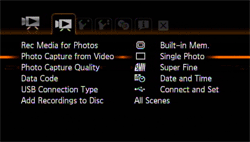
3-3.Select [ Photo Capture from Video ] and press < > .
> .
3-4.Select [  Single Photo ] or [
  Photo Sequence ] and press < > .
Single Photo ] or [ Photo Sequence ] and press < > .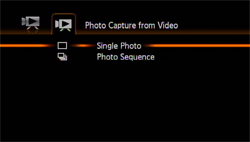
3-5.Select [ Photo Capture Quality ] and press < > .
> .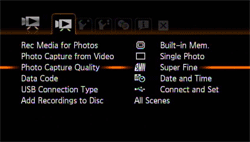
3-6.Select [  Super Fine ] , [
  Fine ] or [
  Normal ] and press < > .
Super Fine ] , [ Fine ] or [ Normal ] and press < > .The number displayed at the bottom indicates the approximate number of photos that can be recorded with the current quality setting.
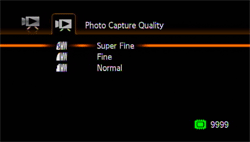
4.Press < > .
> .5.To capture the photo(s)
5-1.Play back the scene containing the picture you want to capture.
5-2.Pause the playback at the point you want to capture.
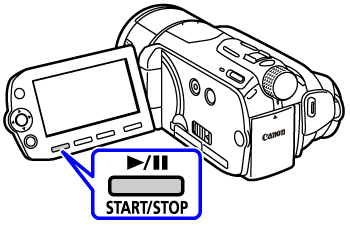
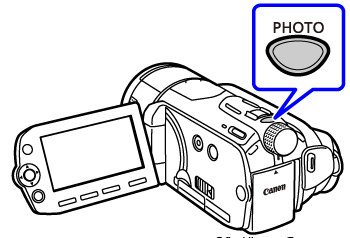
6.Press < PHOTO > fully.
To capture a photo sequence, hold < PHOTO > pressed down.
REFERENCE
[ Photo Sequence]:
Photo Sequence]:- Up to 100 photos can be captured at a time.
- The photo sequence capture will stop when the end of the scene is reached (playback will pause at the beginning of the following scene).
NOTE
- The data code of the photos will reflect the date and time of recording of the original scene.
- Photos captured from a scene with a lot of fast movement may be blurred.
-
 Photos will be recorded on the memory selected for recording photos.