
Shooting in Video Snapshot Mode
Solution
The Video Snapshot function enables you to shoot short scenes that last for 2, 4, and 8 seconds. You can play back Video Snapshot scenes along with your favorite music.
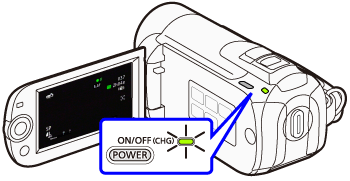
1.Turn on the camcorder.
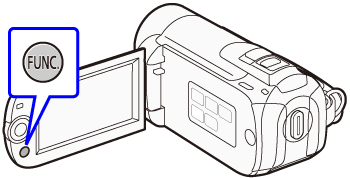
2.Press < FUNC. > button.
3.Select [  Menu], and then press < SET > button.
Menu], and then press < SET > button.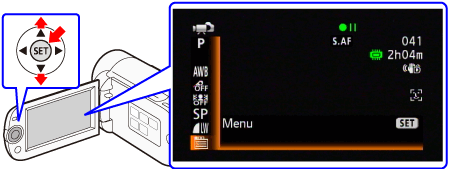
4. Select [Video Snapshot Length] from [  (Camera Setup 1) ], and then press the < SET > button.
(Camera Setup 1) ], and then press the < SET > button.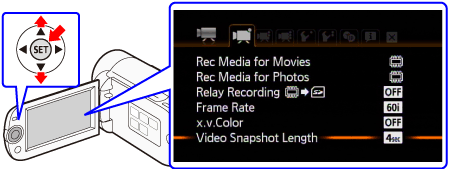
5. Select the length of video snapshot scenes and then press the < SET > button.

6.Press < FUNC. > button to close the menu.
1. Press < VIDEO SNAP >.
A blue border appears on the screen.
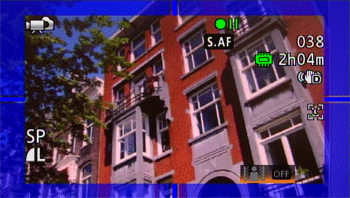
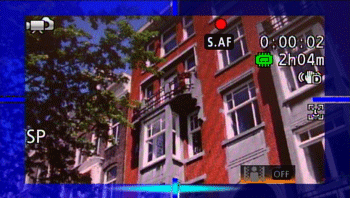
3. Press < START/STOP >.

- The camcorder records for about 4 seconds (the blue frame serves as a visual progress bar) and then automatically returns to record pause mode.
- When the camcorder stops recording, the screen will momentarily turn black as if a camera shutter had released.
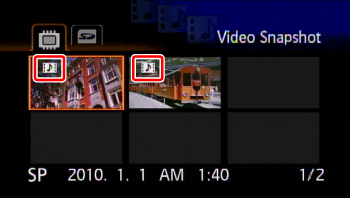
- In the movie index screen, video snapshot scenes are indicated with the [
 ] mark.
NOTE
Video snapshot is deactivated if the camcorder is switched to playback mode.