
How to specify [Paper Type]
Issue
Cause and Solution
NOTE
The screen shots used in this section are from Windows XP Home Edition.
1. Display the [Paper Source] sheet.
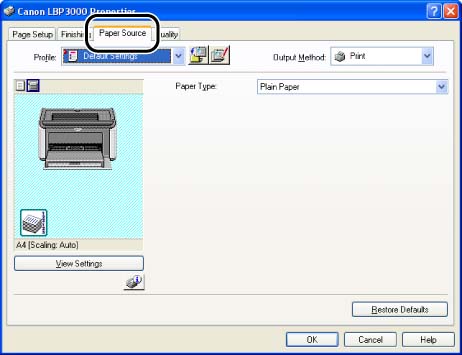
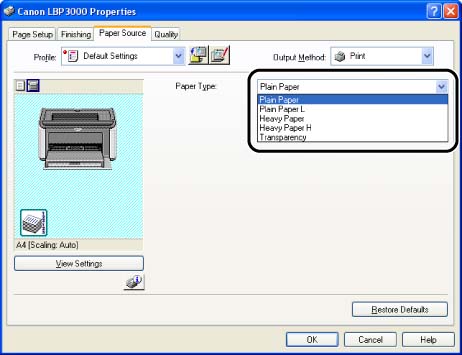
2. Specify [Paper Type].
| Printer Driver Setting | Paper Type |
| [Plain Paper] | Plain Paper (64 - 90 g/m2), Label |
| [Plain Paper L] | Select when paper is curled excessively by selecting [Plain Paper] for [Paper Type] during using plain paper (64 - 90 g/m2). |
| [Heavy Paper] | Heavy Paper (91 - 163 g/m2) |
| [Heavy Paper H] | Select if you want to improve the toner fixation when printed with [Heavy Paper] selected. |
| [Transparency] | Transparency |
* When printing an index card, envelope, or custom paper size, the printer automatically applies the appropriate print mode to the media by specifying [Output Size] in the [Page Setup] sheet.
* [Transparency] can be selected only when either A4 or Letter size is selected for [Output Size] in the [Page Setup] sheet.
IMPORTANT
When [Envelope C5], [Envelope COM10], [Envelope DL], [Envelope Monarch], [Index Card], or a custom paper size is selected for [Output Size] in the [Page Setup] sheet, [Paper Type] is grayed out and cannot be selected.
NOTE
a. When printing an index card, the printer automatically applies the appropriate print mode to the index card by specifying [Index Card] for [Output Size] in the [Page Setup] sheet.
b. When printing an envelope, the printer automatically applies the appropriate print mode to the envelope by specifying an envelope type for [Output Size] in the [Page Setup] sheet.
c. When printing a custom paper size, the printer automatically applies the appropriate print mode to the custom page size by specifying a custom paper size for [Output Size] in the [Page Setup] sheet.
3. Confirm the settings, then click [OK].