

Adding a Date Stamp to Images after Shooting
Solution
A Date Stamp can be added to images using the supplied [ImageBrowser EX] image management and editing software.
Images appended with Date Stamps will be saved as separate files.
IMPORTANT
- The operations described here assume that the ImageBrowser EX software for use with digital cameras has been installed, and has been updated over the Internet.
- Installation procedures for [ImageBrowser EX] may differ depending on the model you are using.
- If [ImageBrowser EX] is included on the DIGITAL CAMERA Solution Disk that came with your camera, please install the software using the DIGITAL CAMERA Solution Disk.
- If [ImageBrowser EX] was not included on the supplied CD, you can download and install the [ImageBrowser EX] updater from the download page of the Canon Web site.
- If a CD did not come bundled with your camera, please download the [Digital Camara Software] from the Canon Web site and use it to install the [ImageBrowser EX] software.
Please note that you will need to have your camera ready when you perform the installation.
NOTE
- The following example procedures are shown as performed in Windows 7. Operations and on-screen displays may differ slightly depending on the operating system you are using.
- Text cannot be added to RAW images. Please convert the image format to JPEG before attempting to add text.
The procedure for adding Date Stamps to images using [ImageBrowser EX] is shown below.
1. Import your images into the computer.
For more information on importing images, refer to:
2. Double-click the icon on your desktop to start [ImageBrowser EX].

If you do not find a shortcut icon for [ImageBrowser EX] on your desktop, start [ImageBrowser EX] by clicking [Start] ( ) > [All Programs] or [Programs] > [Canon Utilities] > [ImageBrowser EX] > [ImageBrowser EX], in that order.
) > [All Programs] or [Programs] > [Canon Utilities] > [ImageBrowser EX] > [ImageBrowser EX], in that order.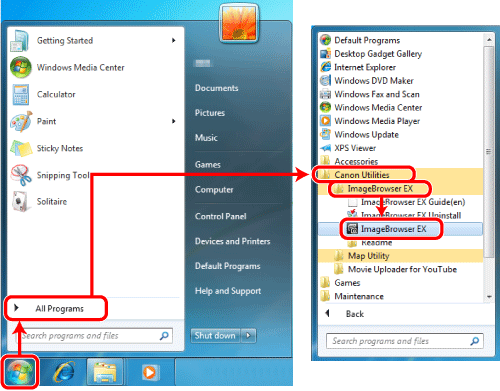
NOTE
On a Mac, click the [ImageBrowser EX] icon on the [Dock]. If no [ImageBrowser EX] icon is found on the [Dock], click [Go] on the menu bar, select [Applications], and then open [Canon Utility] > [ImageBrowser EX], and then select and start [ImageBrowser EX].
3. Image Browser EX will start. Click the desired images.
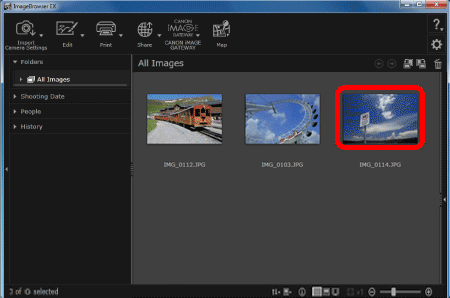
4. Click [Edit], and then select [Insert Text].
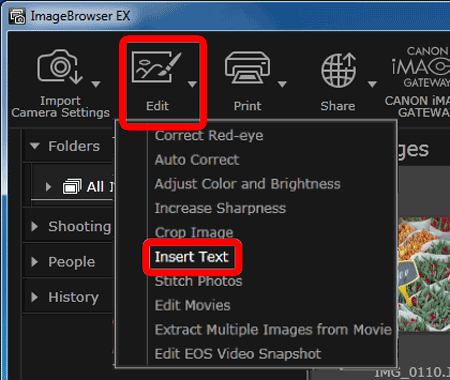
5. 5. The [Insert Text] window will appear.
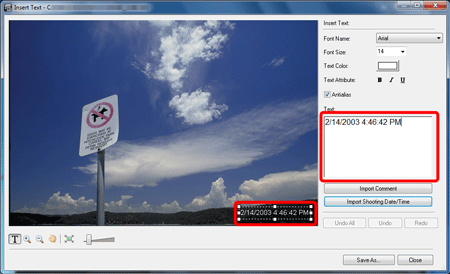
 Click the image to select the desired location for the Date Stamp. A text filed will be displayed.
- You can drag the text field to change its location.
 Click [Import Shooting Date/Time].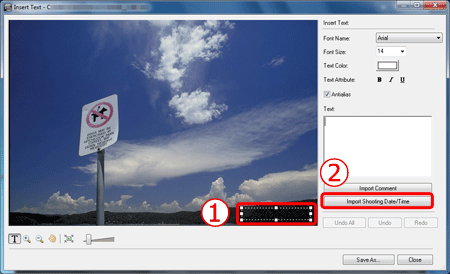
6. The shooting date for the image will be displayed.
NOTE
For smoother text edges, select the [Antialias] check box. Text will blend into the background better.
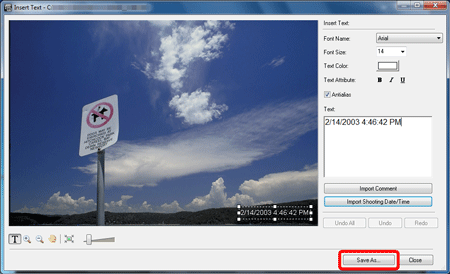
7. Click the [Save As...] button.
8. Set the file name and the destination folder settings, and then file the [Save] button.
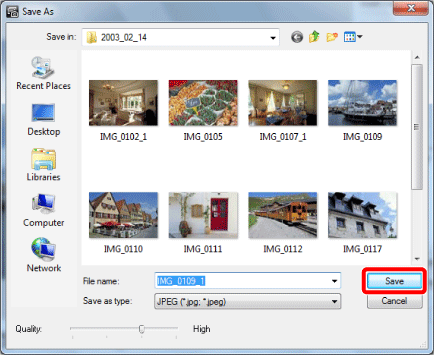
9. The image appended with the Date Stamp will be saved.