
Converting Movies to MP4 Format (VIXIA mini X / LEGRIA mini X)
Solution
You can convert AVCHD and MP4 scenes to an MP4 scene with lower video quality (down-conversion) to obtain smaller file sizes. This is convenient, for example, when you want to upload videos to the Web, as smaller video files will upload more quickly.
The procedure for converting movies to MP4 is explained below.
1. Turn on the camcorder.
2. Press and hold the < > button to set the camcorder to Playback mode.
> button to set the camcorder to Playback mode.3. Touch [Edit].
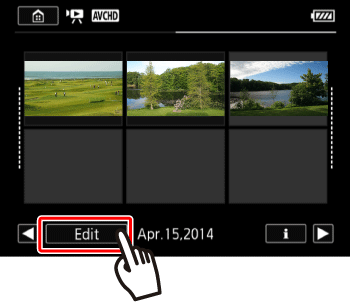
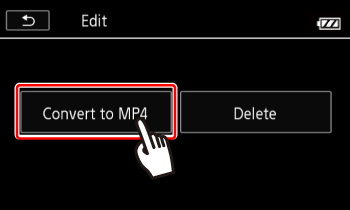
4. Touch [Convert to MP4]
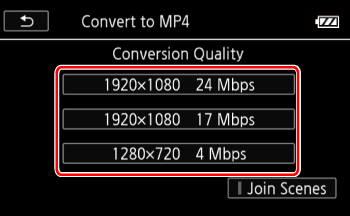
5. Select the desired video quality of converted movies.
NOTE
- Before selecting the video quality, touch [Join Scenes] to join the converted movies into a single scene.
| Video quality and resolution of the original scene | Video quality and resolution of the converted scene | ||
| 24Mbps (1920×1080) | 17Mbps (1920×1080) | 4Mbps (1280×720) | |
| 24Mbps (1920×1080) | ○ | ○ | ○ |
| 17Mbps (1920×1080) | ○ | ○ | ○ |
| 4Mbps (1280×720)* | – | – | ○ |
6. Touch the individual scenes you want to convert.
- A checkmark
 will appear on the scenes you touch. The total number of selected scenes will appear next to the
  .
. - Touch a selected scene to remove the checkmark.
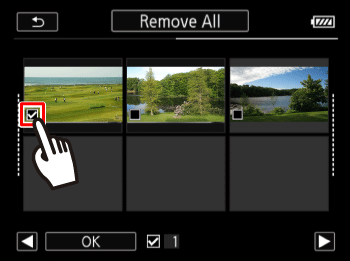
NOTE
To remove all checkmarks at once, touch [Remove All] > [Yes].
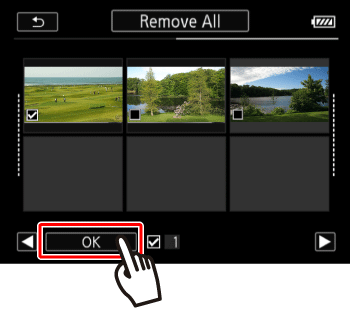
7. Touch [OK].
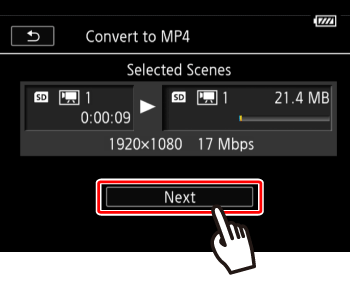
8. Touch [Next].
9. Touch [START] to convert the scene.
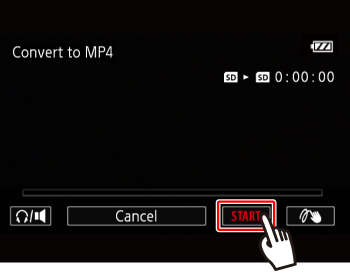
NOTE
Touch [STOP] to interrupt the operation while it is in progress.
10. Touch [OK].
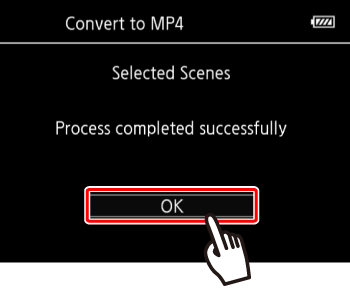
NOTE
- After repeatedly recording, deleting and editing scenes (fragmented memory), MP4 conversion may stop working correctly.
- The following scenes cannot be converted/resized using MP4 conversion.
- Slow motion scenes recorded using 3 Mbps video quality ([x1/4] speed).
- Interval scenes with the  icon.
icon.
icon.- Scenes recorded using different frame rates cannot be joined into a single scene during MP4 conversion.
This concludes the process of converting movies to MP4.