
Resizing images captured by EOS 7D Mark II with the camera (Resizing an image to make the pixel count lower) (EOS 7D Mark II)
Solution
You can resize a JPEG image to make the pixel count lower and save it as a new image. Resizing an image is possible only with JPEG L/M/S1/ S2 images. JPEG S3 and RAW images cannot be resized.
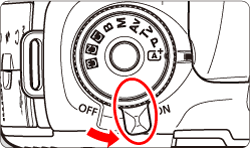
1. Set the camera's power switch to <ON>.
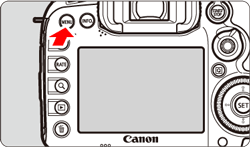
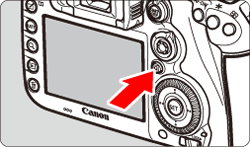
2. Press the <MENU> button to display the menu screen.
3. Press the < > button and select the [
  ] tab.
> button and select the [ ] tab.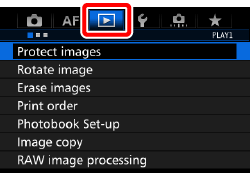
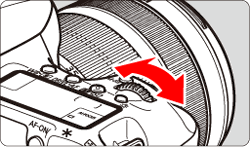
4. Turn the < > dial to select the [
  ] tab.
> dial to select the [ ] tab.
5. Turn the < > dial to select [Resize], then press <
 >.
>.
> dial to select [Resize], then press <>.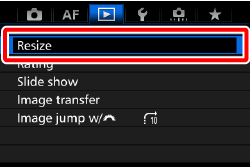
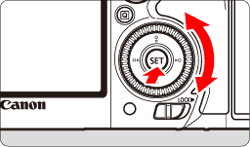
6. Turn the <> dial to select the image you want to resize, then press <>.
> dial to select the image you want to resize, then press <>.- If you press the <
 > button and turn the <> dial counterclockwise, you can select an image from the index display.
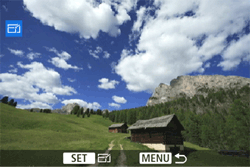
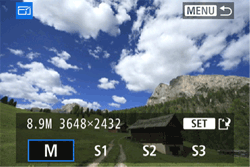
7. Select the desired image, then press < >.
>.
NOTE
The target sizes (M / S1 / S2 / S3) in this window will be smaller than the original size. For example, if the original image size is S1, you can select S2 or S3.
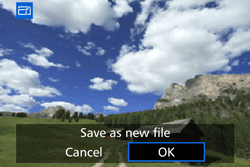
8. Save the image.
- Turn the <> dial and select [OK] to save the resized image.
- Check the destination folder and image file number, then press < >.
- To resize another image, repeat steps 6 to 8.
The image size displayed in step 7, such as [***M ****x****], has a 3:2 aspect ratio. The image size according to aspect ratios is shown in the table below. The asterisked image-recording quality figures do not exactly match the aspect ratio. The image will be cropped slightly.
| Image Quality | Aspect Ratio and Pixel Count (Approx.) | |||
|---|---|---|---|---|
| 3:2 | 4:3 | 16:9 | 1:1 | |
 | 3648×2432 (8.9 megapixels) | 3248×2432* (7.9 megapixels) | 3648×2048* (7.5 megapixels) | 2432×2432 (5.9 megapixels) |
 | 2736×1824 (5.0 megapixels) | 2432×1824 (4.4 megapixels) | 2736×1536* (4.2 megapixels) | 1824×1824(3.3 megapixels) |
 | 1920×1280 (2.5 megapixels) | 1696×1280* (2.2 megapixels) | 1920×1080 (2.1 megapixels) | 1280×1280 (1.6 megapixels) |
 | 720×480 (350,000 pixels) | 640×480 (310,000 pixels) | 720×408* (290,000 pixels) | 480×480 (230,000 pixels) |