

Customizing a Picture Style (EOS 7D Mark II)
Solution
You can customize a Picture Style by adjusting individual parameters such as [Sharpness] and [Contrast]. To see the resulting effects, take test shots.
To change Picture Style values, follow the procedures below.
1. Set the camera's power switch to <ON>.
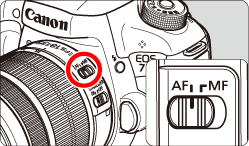
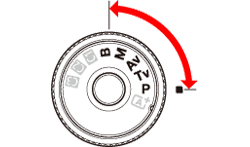
Set the Mode Dial to < P / Tv / Av / M / B>.
3. Press the < > button.
> button.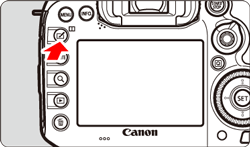
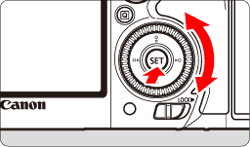
4. Turn the < > dial to select [
  ], then press <
 >.
>.
> dial to select [ ], then press <>. 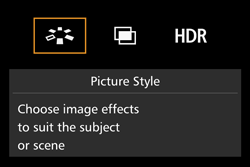
REFERENCE
You can also select the Picture Style with [  : Picture Style].
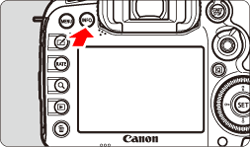
: Picture Style].5. Turn the <> dial to select a Picture Style, then press the <INFO.> button.
> dial to select a Picture Style, then press the <INFO.> button.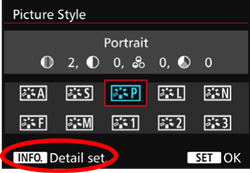
6. Turn the <> dial to select a parameter such as [Sharpness], then press <>.
> dial to select a parameter such as [Sharpness], then press <>. 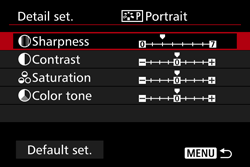
NOTE
By selecting [Default set.], you can revert the respective Picture Style to its default parameter settings.
7. Turn the <> dial to adjust the parameter as desired, then press <>.
> dial to adjust the parameter as desired, then press <>.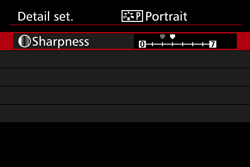
Press the <MENU> button to save the adjusted parameters. The Picture Style selection screen will reappear.
Parameter Settings and Effects
| Sharpness | 0: Less sharp outline | +7: Sharp outline |
|---|---|---|
| Contrast | -4: Low contrast | +4: High contrast |
| Saturation | -4: Low saturation | +4: High saturation |
| Color tone | -4: Reddish skin tone | +4: Yellowish skin tone |
NOTE
- To shoot with the Picture Style you adjusted, first select the adjusted Picture Style, then shoot.
<Monochrome Adjustment>
For Monochrome, you can also set [Filter effect] and [Toning effect] in addition to [Sharpness] and [Contrast].
- With a [Filter effect] applied to a monochrome image, you can make white clouds or green trees stand out more.
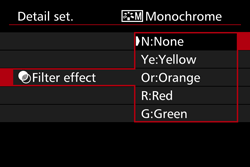
- By applying a [Toning effect], you can create a monochrome image in that color.
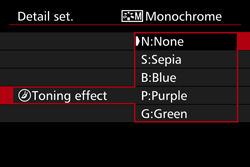
For more information on [Filter effect] and [Toning effect], please refer to the camera’s instruction manual.
You can select a base Picture Style such as [Portrait] or [Landscape], adjust its parameters as desired and register it under [User Def. 1], [User Def. 2], or [User Def. 3].
You can create multiple Picture Styles with different settings for parameters such as sharpness and contrast.
You can also adjust the parameters of a Picture Style that is registered to the camera with EOS Utility (EOS software).
To register a Picture Style, carry out steps 1 to 4 above, and then follow the procedures below.
5. Turn the <> dial to select [User Def. *], then press the <INFO.> button.
> dial to select [User Def. *], then press the <INFO.> button. 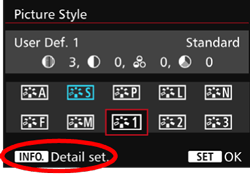
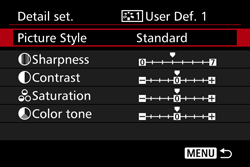
6. With [Picture Style] selected, press <>.
>.
7. Turn the <> dial to select the base Picture Style, then press <>.
> dial to select the base Picture Style, then press <>.To adjust the parameters of a Picture Style that is registered to the camera with EOS Utility (EOS software), select the Picture Style here.
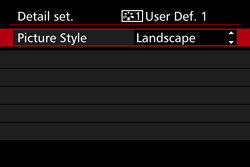
8. Turn the <> dial to select a parameter such as [Sharpness], then press <>.
> dial to select a parameter such as [Sharpness], then press <>.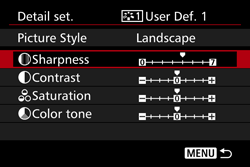
9. Turn the <> dial to adjust the parameter as desired, then press <>.
> dial to adjust the parameter as desired, then press <>.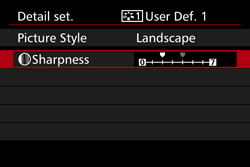
Press the <MENU> button to register the modified Picture Style. The Picture Style selection screen will then reappear.
IMPORTANT
- If a Picture Style has already been registered under [User Def. *], changing the base Picture Style in step 6 will nullify the parameter settings of the registered Picture Style.
- If you execute [Clear all camera settings], all the [User Def. *] settings will revert to their defaults. Any Picture Style registered via EOS Utility (EOS software) will have only its modified parameters reverted to the default setting.
NOTE
- To shoot with the Picture Style you adjusted, select the registered [User Def. *], then shoot.
- Regarding the procedure to register a Picture Style file to the camera, refer to the EOS Utility Instruction Manual