
Printing from a Camera (Camera Direct Print) (SELPHY CP1000)
Solution
IMPORTANT
- By connecting a PictBridge-compatible camera, you can choose images with the camera and print.
- Here, printing instructions are given using a Canon compact digital camera (PowerShot SX400 IS) as an example. If your camera is operated differently, refer to the camera user manual.
1. Prepare SELPHY.
- Confirm that no memory cards are inserted in SELPHY.
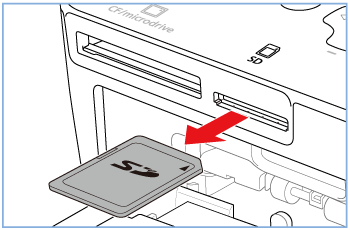
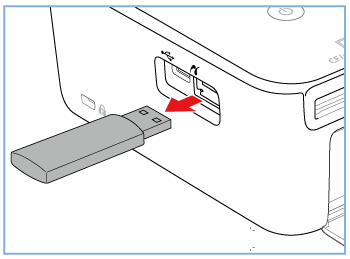
- Insert a loaded paper cassette and an ink cassette in SELPHY
REFERENCE
For more information, please refer to Printing images with your new SELPHY CP1000 photo printer .
2. Connect SELPHY to the camera.
- Connect SELPHY to the camera using the USB cable
- Turn on
 SELPHY and then
  the camera.
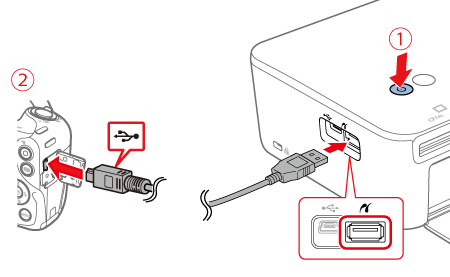
- When the devices are connected the following screen appears.
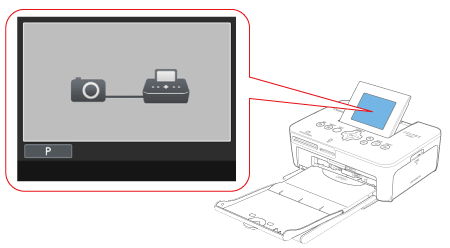
- Enter Playback mode on the camera.

NOTE
- Some cameras will display a [
 ] icon.
On the camera, choose images and prepare to print.
1. Press the [  ], [
], [  ] buttons to choose the desired image.
], [ ] buttons to choose the desired image.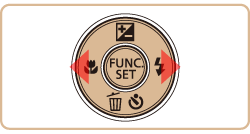
Press the camera’s [FUNC./SET] ( ) button, choose [Print] (
 ), and then press the [FUNC./SET] () button again.
) button, choose [Print] (), and then press the [FUNC./SET] () button again.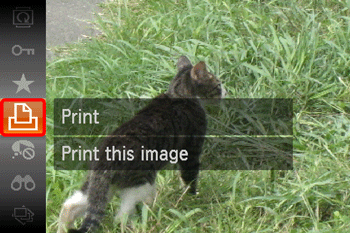
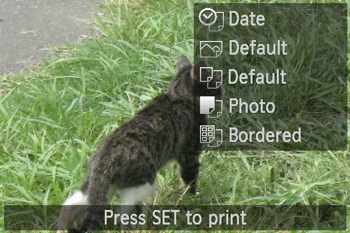
2. The screen for specifying the print settings appears.
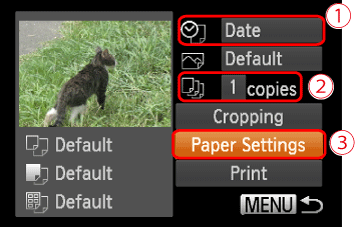 Press the [ ], [ ] buttons to select [Date] for adding the date. Press the [ ], [ ] buttons to specify the number of prints.
 Choose [Paper Settings], and then press the camera's [FUNC./SET] ( ) button.
3. The screen for setting the paper size appears.
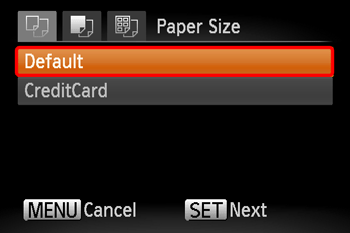
Press the [  ], [
], [  ] buttons to choose the paper size, then press the camera's [FUNC./SET] ( ) button
], [ ] buttons to choose the paper size, then press the camera's [FUNC./SET] ( ) buttonIn the image shown above, the [Default] size is selected.
4. The screen for setting the paper type appears.
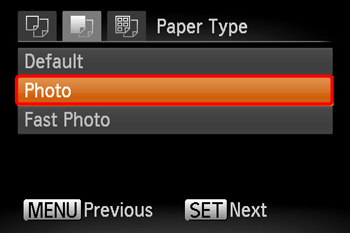
Press the [ ], [ ] buttons to choose the paper type, and then press the camera's [FUNC./SET] ( ) button.
], [ ] buttons to choose the paper type, and then press the camera's [FUNC./SET] ( ) button.In the image shown above, [Photo] is selected.
5. The layout settings screen appears.
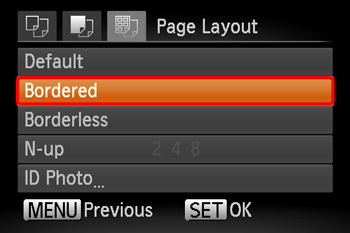
Press the [ ], [ ] buttons to choose the layout type, and then press the camera's <FUNC./SET> ( ) button.
], [ ] buttons to choose the layout type, and then press the camera's <FUNC./SET> ( ) button.In the image shown above, [Bordered] is selected.
6. Return to the printing screen.
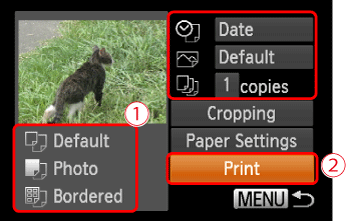 Make sure that the settings are correct. Choose [Print] and press the camera's <FUNC./SET> () button to start printing.
7. After printing, turn off SELPHY and the camera and disconnect the cable.
NOTE
- Printing in progress cannot be canceled from SELPHY by using the [
 ] button. Use the camera to stop printing.
 - This product uses PictBridge technology to print via USB PictBridge technical standards facilitate direct connection of cameras, printers, and other devices for easy printing.