

Viewing and Organizing Images (Connect Station CS100)
Solution
You can use the Connect Station’s remote control to perform operations while using a TV as a monitor.
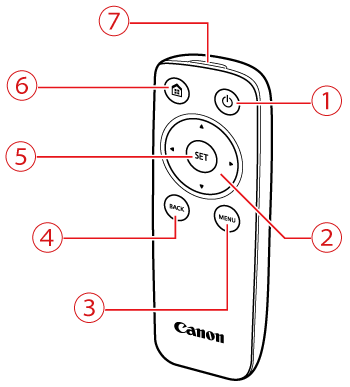
 | Power button | Turn on the power or put Connect Station into the standby state. |
 | Cross keys | |
 | Menu button | Menu screen appears. |
 | Back button | Previous screen reappears. |
 | Set button | Selected item takes effect. |
 | Home button | Home screen appears. |
 | Remote control transmitter | |
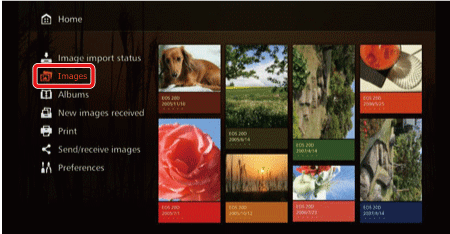
To view images on a TV set, select [Images] or [Albums] on the Home screen.
1.Viewing Images from the Image List
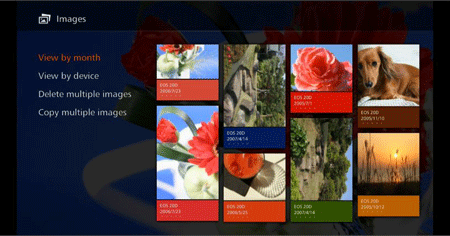
- To view the images of a selected shooting month or camera/camcorder, to delete multiple images at once, or to copy multiple images to a card, select [Images] on the Home screen and press the [SET] button.

NOTE
- Sort the images to be displayed, according to the shooting month or the camera/ camcorder used for shooting.
- You can create an album, add images to an album, print, send images to a Web service, rotate, delete, etc., by selecting images from the displayed list. You can also view a slide show of the listed images or have only rated images displayed.
- When deleting multiple images or copying multiple images to a memory card at once, sort the images to be displayed according to the shooting month.
2.Viewing Images by Shooting Month or Camera/Camcorder
- Search for images by selecting the shooting month or the camera/camcorder used for shooting.
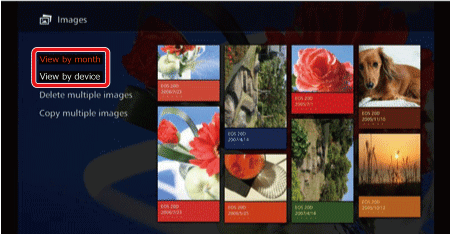
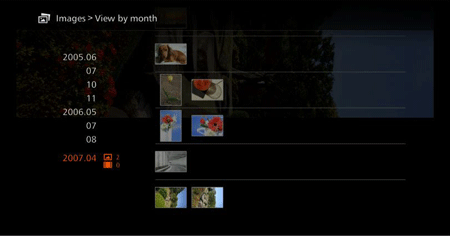
- When you select the shooting month or the camera/camcorder used for shooting in the left-side area, the corresponding images will be displayed as thumbnails in the right-side area of the screen.
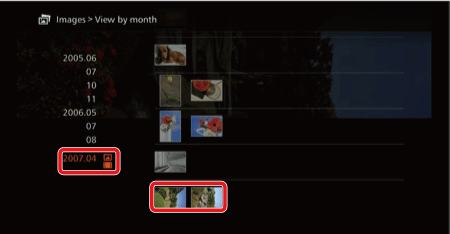
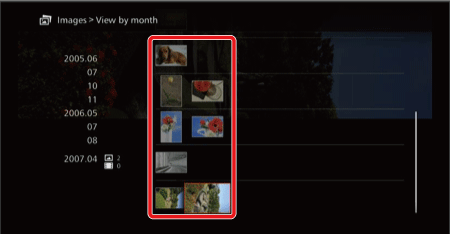
- When you press [SET] or the [
 ] key, you can select images in the thumbnail area.
NOTE
- To print the selected images, play back a slide show, or perform other operations, press [MENU].
- [Protect] is set for images displayed with [
 ].
]. - If you keep pressing the [
 ], [
], [  ], [
], [  ], [ ] key to browse images, the selection frame may skip.
3.Setting the submenu
- When you press [MENU] while the shooting month or the camera/ camcorder used for shooting is selected, or while images are selected in the thumbnail area, the menu shown below will appear.
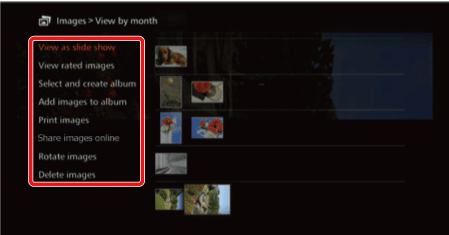
| Menu Items | Settings |
| View as slide show | A slide show of the target images will be played back. |
| View rated images | Only rated images will be displayed. You can set ratings during the playback of images. |
| Select and create album | An album will be created from selected images. |
| Add images to album*1 | Images will be added to a created album. When you select an album from the list and press [SET], images will be added to the selected album. |
| Print images*2 *3 | Selected images are printed. For information on how to print, see Printing with a Wi-Fi Printer (Connect Station CS100) . |
| Share images online | Selected images will be shared via Web service. |
| Rotate images*1 *2 | Selected images will be rotated. Each time you press [SET], images are rotated clockwise by 90°. |
| Delete images | Selected images are deleted. Select an image and press [SET] to append [  ] for the image to be deleted. Pressing [MENU] will delete the image. ] for the image to be deleted. Pressing [MENU] will delete the image. |
| *1 Displayed only when images are selected in the thumbnail area. *2 Not available when a movie is selected. *3 Not available when a printer is not set. | |
Specify images by a shooting month, and delete them or copy them to a card at once. You can also select images one by one from the displayed images.
[Delete multiple images]
1. Select [Images] on the Home screen and press the [SET] button.
2. Select [Delete multiple images] and press the [SET] button.
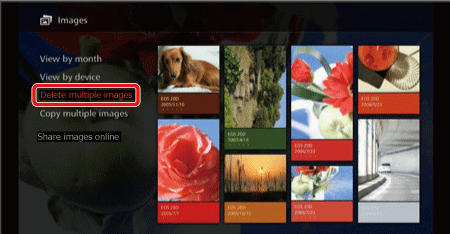
3. Sort the target images by a shooting month.
Select a shooting month in the left-side area and press the [SET] button to append [ ] for all the target images.
] for all the target images.
NOTE
Press the [ ] key to select images in the thumbnail area. Select an image and press [SET] to append [ ] for that image.
] key to select images in the thumbnail area. Select an image and press [SET] to append [ ] for that image.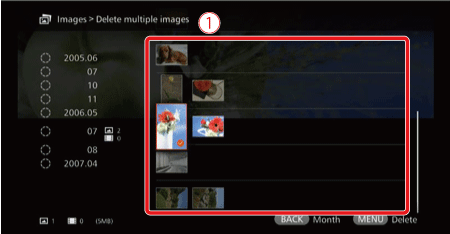
 : thumbnail area
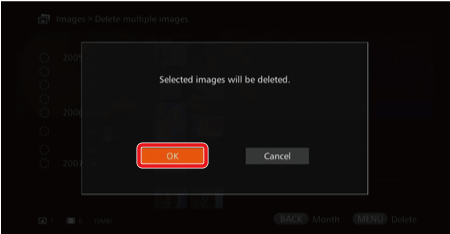
4.Pressing [MENU] will delete the images. Select [OK] and press the [SET] button.
[Copy multiple images]
- For information on how to copy multiple images, see Selecting Desired Images From Connect Station and Saving Them to a Memory Card (Connect Station CS100) .
Creating an album enables you to do the following:
- View favorite images at once, view images of a trip or some other event at once and share them.
- View images from a Web browser.
To view, create, or edit an album, select [Albums] on the Home screen and press the [SET] button.
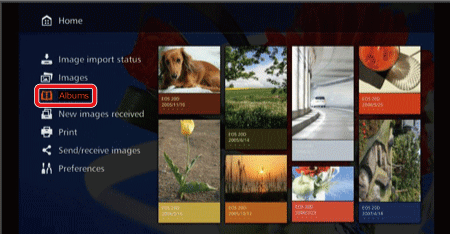
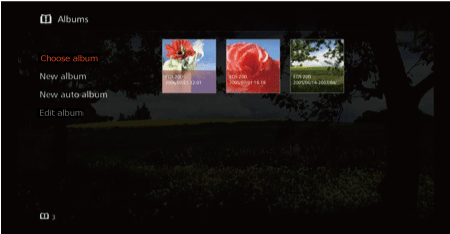
[Creating an Album]
Select desired images from the images imported to Connect Station and create an album.
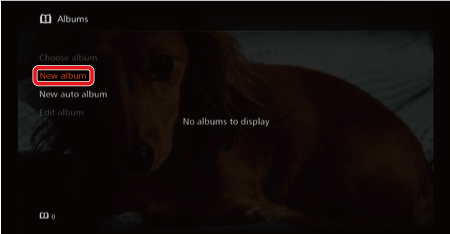
1. Select [New album] and press the [SET] button to display the image selection screen.
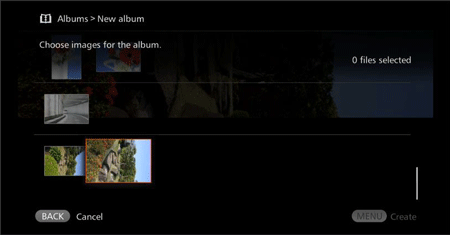
2.Select images and press [SET] to append [ ] for the images to be compiled into an album.
] for the images to be compiled into an album.
3.Pressing [MENU] creates an album.
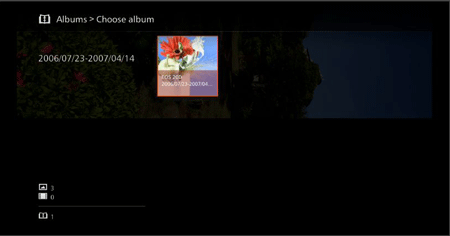
NOTE
[Creating an Album Automatically]
Connect Station automatically selects images and creates an auto album.
1. Select [New auto album] and press the [SET] button to display the auto album setting screen.
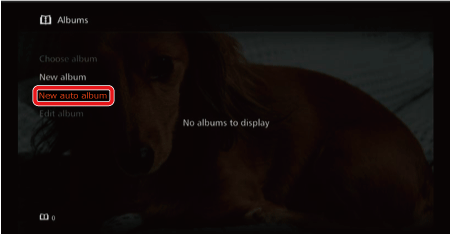
2.When you set [Auto album playback time] and [Type of images], select [OK] and press the [SET] button, an auto album will be created.
, select [OK] and press the [SET] button, an auto album will be created.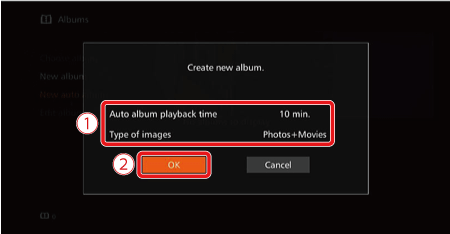
[Selecting an Album]
When you select an album and press [SET], a slide show of the album will be played back.
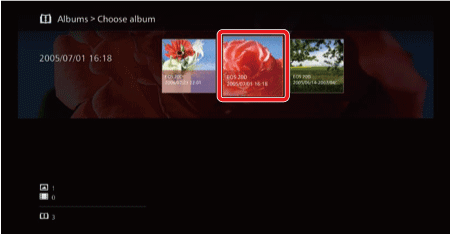
When you press [MENU] while an album is selected, the menu shown below will appear.
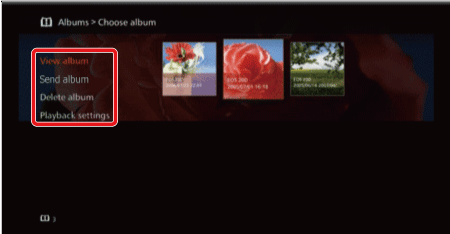
| Menu Items | Settings |
| View album | The images in the album will be displayed as thumbnails. |
| Send album | An album will be sent to another Connect Station via the Internet. |
| Delete album | The selected album will be deleted. |
| Playback settings | Specify the slide show playback settings. You can set the display time for each still photo and playback time for movies. |
When you press [MENU] while an album is selected, the menu shown below will appear.
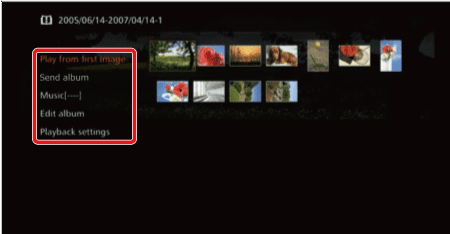
| Menu Items | Settings |
| Play from first image | A slide show of the album will be played back. |
| Send album | An album will be sent to another Connect Station via the Internet. |
| Music | Select the background music to be played during the slide show. |
| Edit album | Add images to the album, or remove images from the album. |
| Playback settings | Specify the slide show playback settings. You can set the display time for each still photo and playback time for movies. |
[Editing an Album]
Add images to an album, or remove images from an album. Images will not be deleted from Connect Station even if you remove them from an album.
1. Select [Edit album] and press the [SET] button.
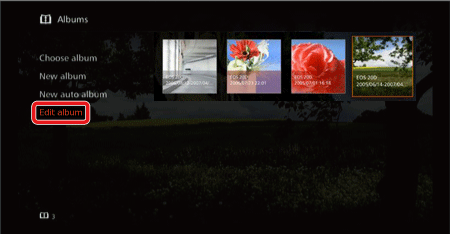
2.When you select an album and press [SET], the editing screen will appear.
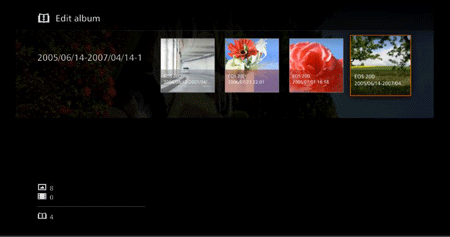
When you press [MENU] while an album is selected and the images are displayed as thumbnails, the menu shown below will appear.

| Menu Items | Settings |
| Copy to memory card | The selected album will be copied to a card. |
| Delete album | The selected album will be deleted. |
3.Selecting an image to remove
Select an image and press [SET] to append [ ] for the image to be removed.
] for the image to be removed.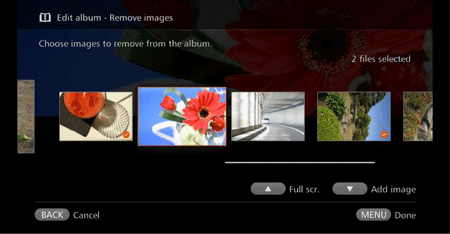
4.Selecting an image to add
Press the [ ] key to display the image selection screen. Select an image and press [SET] to append [ ] for the image to be added.
] key to display the image selection screen. Select an image and press [SET] to append [ ] for the image to be added.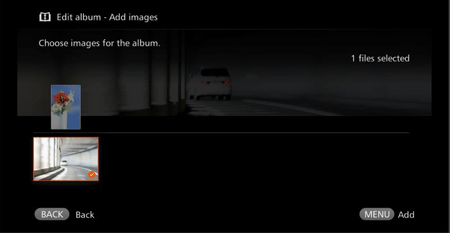
5.When you press [MENU], the images to be added will be accepted and the editing screen will reappear.
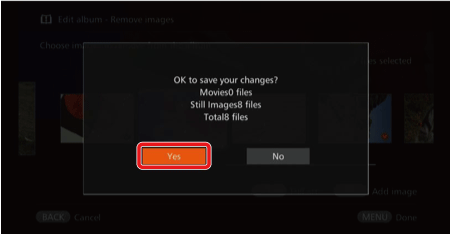
6.Saving the edited data
Press [MENU], select [OK] and press the [SET] button, the edited data will be saved and the album selection screen will reappear.
When playing back a selected image or a slide show, you can perform the operations below by using the remote control.
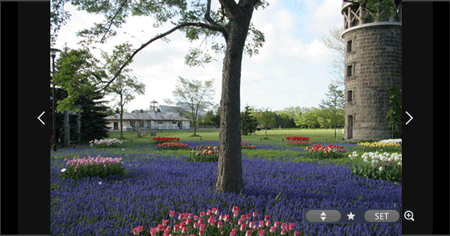
| Menu Items | Settings |
| Displays the next image. |
| Displays the previous image. |
| , | Rate images with one of five levels. *1 |
| SET | (Photo) Magnify the image*2 (Movie) Pause |
| *1 Cannot be set while the album is being played back. *2 To reduce the image in magnified view, press [MENU]. | |
When you press [MENU] during single-image playback or slide show playback, the menu shown below will appear.

| Menu Items | Settings |
| Slide show | Start/stop slide show. |
| Shooting information | Switch display settings of shooting information. |
| Rating*1 | Rate images with one of five levels. |
| Rotate images*2 | Rotate an image clockwise by 90°. |
| Protect*1 | Enable/disable the protect setting. |
| Print*2*3 | Print the displayed image. |
| Music*1 | Set background music to on/off. |
| Playback settings | Set the display time for each still photo and playback time for movies. |
| Delete images*1 | Delete the displayed image. |
| Remove from album*4 | Remove the displayed image from the album. |
| *1 Not displayed when an album is being played back. *2 Not displayed when a movie is selected. *3 Not available when a printer is not set. *4 Displayed only when an album is being played back. | |