
How to Transfer Images to the Computer Using Image Transfer Utility 2 (Wi-Fi) (Windows 10)
Solution
How to send images from the camera to a computer using Image Transfer Utility 2.

IMPORTANT
- In the following explanation, computer setting procedures are indicated by the
 icon, and camera setting procedures are indicated by the
  icon.
icon.
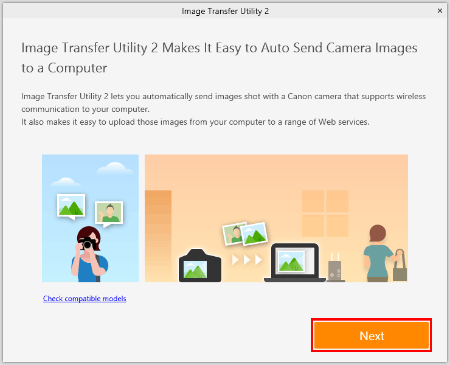
 1. Download the software [ Image Transfer Utility 2 ] from the Canon homepage on to your computer, and proceed to installation. 2. Once the installation is complete, the settings window for [ Image Transfer Utility 2 ] will be displayed, click [ Next ] .
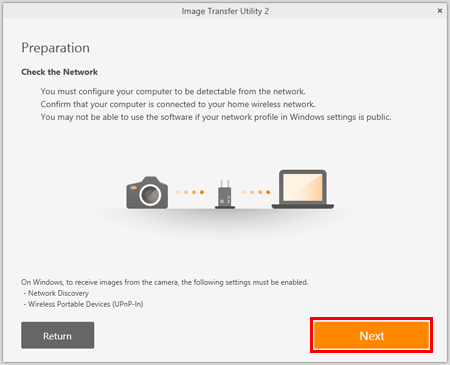
 3. [ Preparation ] will be displayed, read the details carefully and click [ Next ] .
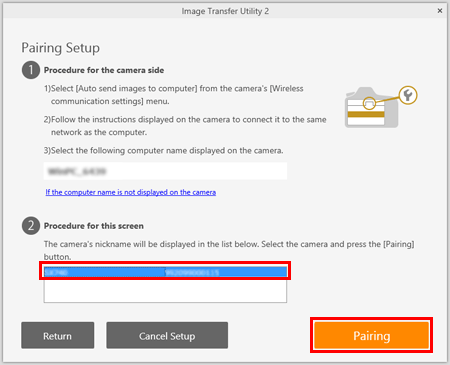
 4. [ Pairing Setup ] will be displayed. Keep the screen as it is displayed, and move on to the next step.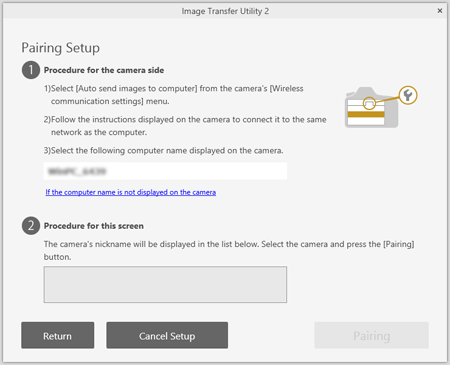
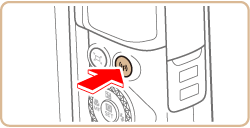
 1. Press the
  button.
 2. When the [ Nickname ] screen appears, press the
  button.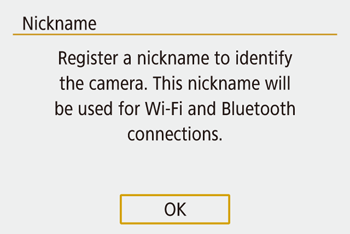
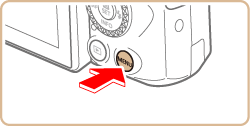
 3. Confirm the Nickname (Name of the camera). After confirmation, press the
  button.
REFERENCE
- Nicknames are 1 – 8 characters and can be changed later.
4. Press the  /
/  buttons to choose [ OK ] , press the button.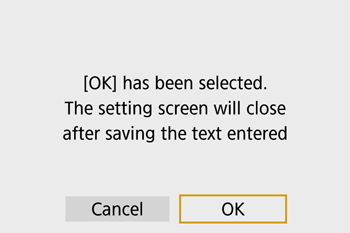
 5. Press the button.
Return to the function settings menu.
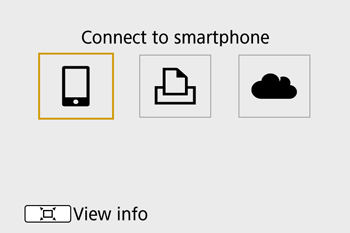 6. Press the / buttons to choose [
  ] , press the
  button.
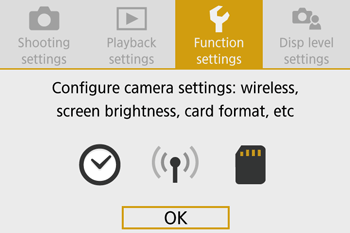 7. Press the / buttons to choose [ 1 ] .
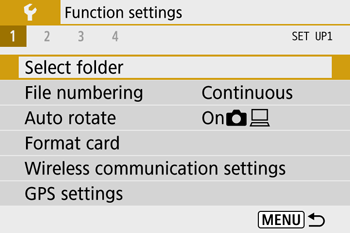 8. Press the
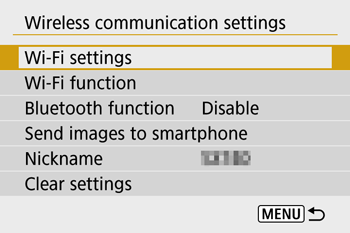
  /
/  buttons to choose [ Wireless communication settings ] , press the button.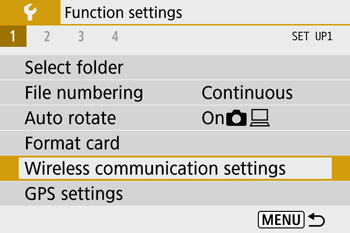
 9. Press the / buttons to choose [ Wi-Fi settings ] , press the button.
 10. Press the / buttons to choose [ Auto send images to computer ] , press the button.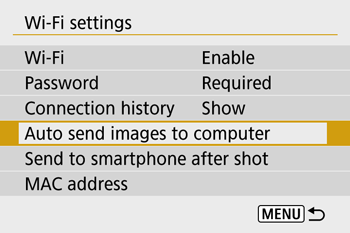
NOTE
If [ Wi-Fi ] settings has [ Disable ] selected, change settings to [ Enable ] .
11. Press the / buttons to choose [ Auto send ] , press the button.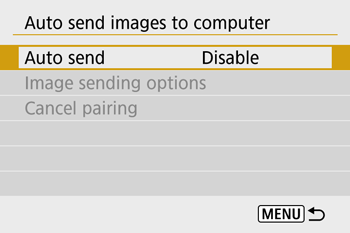 12. Press the / buttons to choose [ Enable ] , press the button.
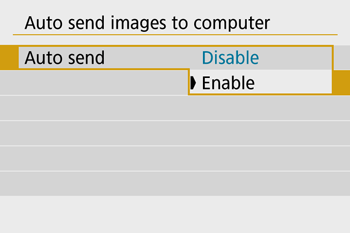 13. Press the / buttons to choose [ OK ] , press the button.
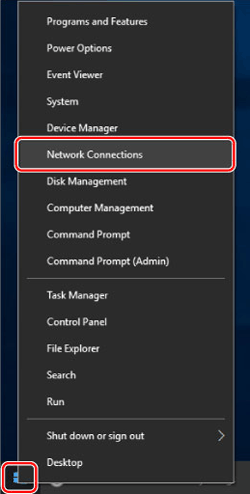
 14. Right-click the Start button on the bottom left of the screen (
  ), and then select [Network Connections].
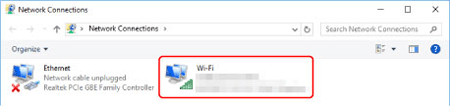
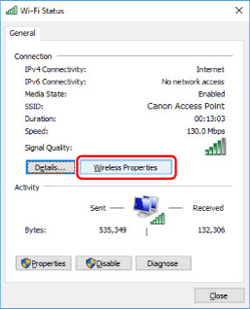
 15. When this screen is displayed, double-click [Wi-Fi].
  16. Select the SSID that matches with the one shown in [SSID:], and then press the button. (See the SSID example below).
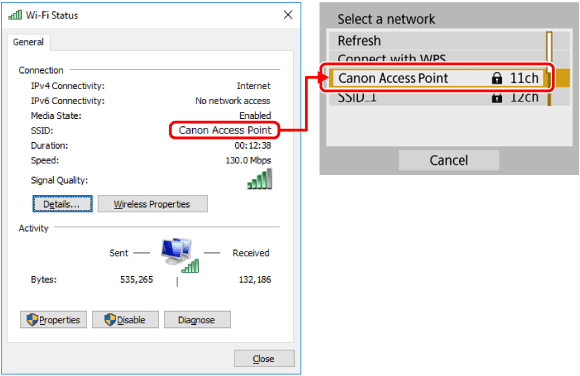 17. Click [Wireless Properties].
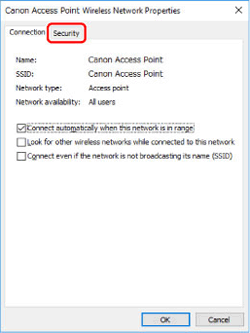
 18. Click the [Security] tab.
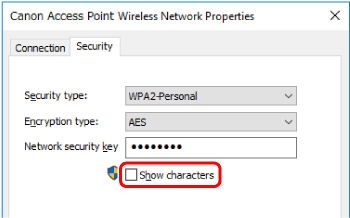
 19. Tick the [Show characters] checkbox.
 20. On the [ Password ] screen, press the button.
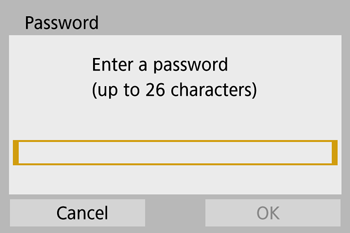 21. Enter the password displayed in the [Network security key]. (See the password example below).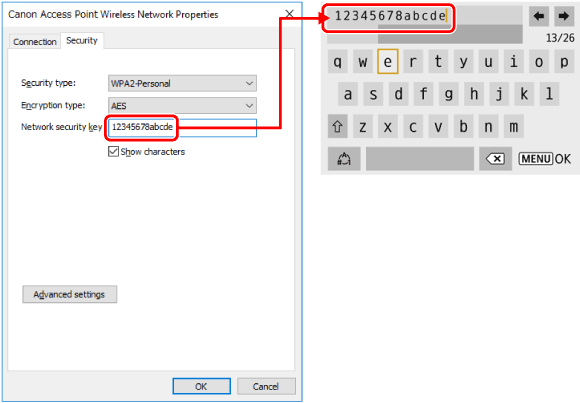
- For information on how to use the on-screen keyboard, see [Using the On-Screen Keyboard].
- Press the button after the letters have been confirmed, before returning to the previous screen.
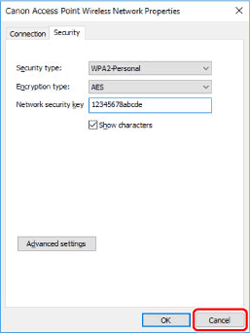
22. After the password has been entered, press the / buttons to choose [ OK ] , press the button.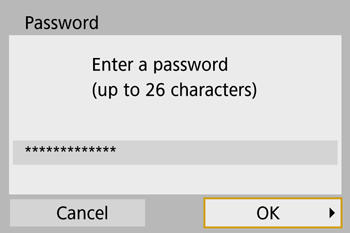 23. Click [Cancel].
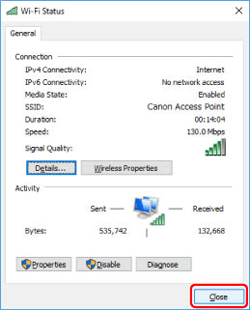
 24. Click [Close].
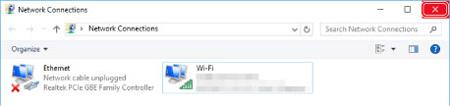
 25. Close [Network Connections].
 26. Press the / buttons to choose Key index, press the button. (This screen may or may not be displayed)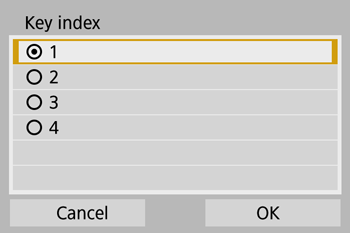
- Press the / buttons to choose [ OK ] , press the button to go to the next step.
27. Press the / buttons to choose [ Auto setting ] , press the button.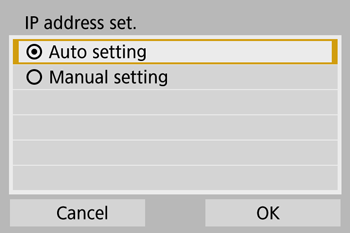
- Press the / buttons to choose [ OK ] , press the button to go to the next step.
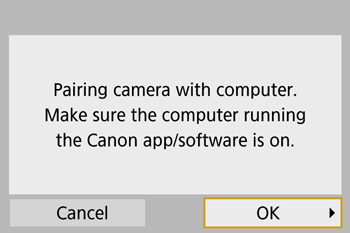
28. The computer name will appear. Confirm that the name displayed on the [ Pairing Setup ] screen is the same, press the button.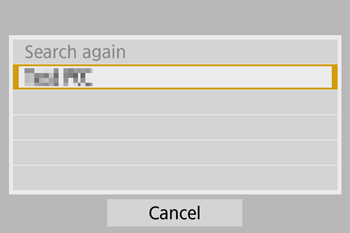 29. If the camera Nickname is displayed under [ Procedure for this screen ] , select camera and click on [ Pairing ].
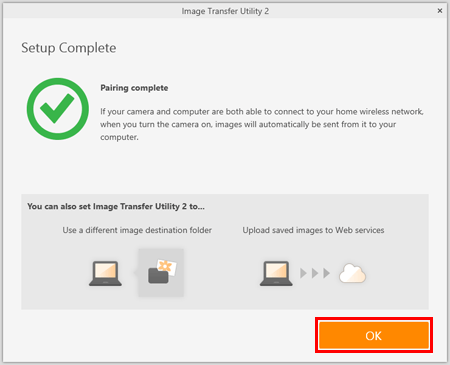
 30. Once pairing is complete, the [ Setup Complete ] window will appear, click [ OK ] .
 31. The [ Waiting ] window will appear for Image Transfer Utility 2. To continue transfering images from the camera, stay on this screen and wait.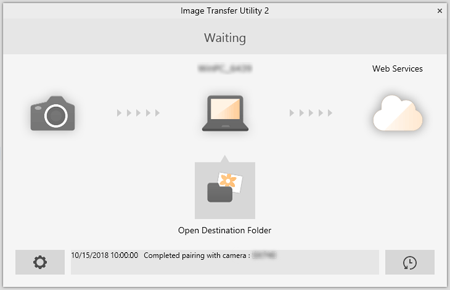
NOTE
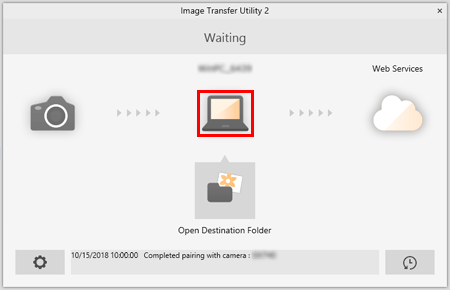
To save images in a different folder, click on the computer icon to open [ Set Destination Folder ] window.
 1. Choose [
  ] menu > [Wireless communication settings] > [Wi-Fi settings] > [Auto send images to computer].
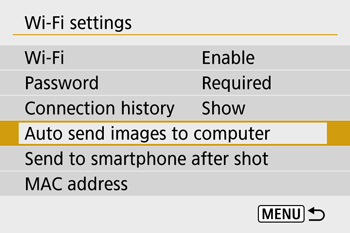 2. Choose [ Image sending options ] .
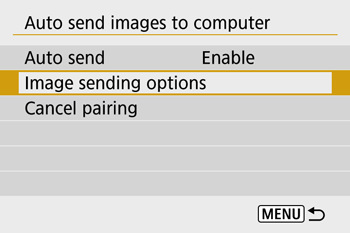 3. In [Image sending options], specify the transfer conditions.
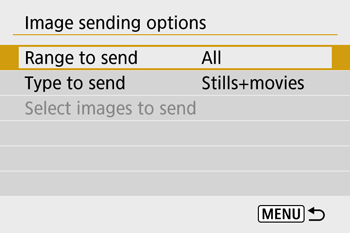 4. Make sure the camera is off. 1. Confirm that the Image Transfer Utility 2 window shows [ Waiting ] . 2. The images will automatically transfer to the computer once the camera has been turned on within range of the access point.
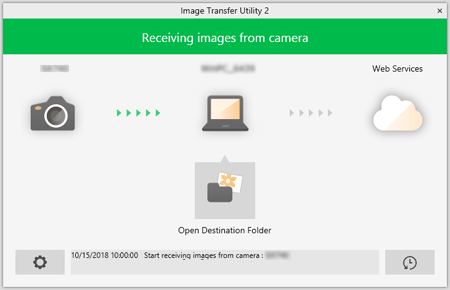 3. To confirm the transferred images, click [ Open Destination Folder ] .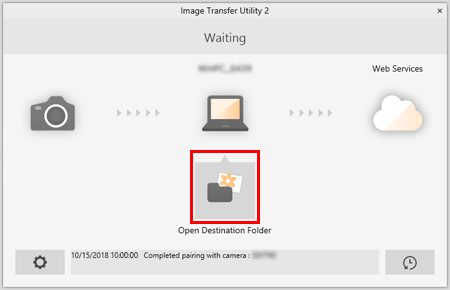
- The images will now be automatically transferred to the computer everytime, once the camera is turned on within range of the access point. If auto-transfer does not start, restart the camera.
IMPORTANT
- When using auto image transfer, ensure that the battery pack has sufficient charge. Power saving on the camera is deactivated.
- Any images captured after auto image transfer are not sent to the computer then. They are sent automatically when the camera is restarted.
NOTE
- Auto image transfer to a computer is triggered by camera startup within range of the access point. If auto image transfer does not begin automatically, try restarting the camera.
- To stop sending images automatically, choose [Auto send images to computer] > [Auto send] > [Disable].
- Once Image Transfer Utility 2 is installed, it will continue to work unless the software has been closed.
- Click on
 of the Image Transfer Utility 2 screen, choose [ Quit ] , this will disable auto-transfer even when the camera is turned on. To Enable wireless transfer again, turn on Image Transfer Utility 2.
Use the on-screen keyboard to enter information. Note that the length and type of information you can enter varies depending on the function you
are using.
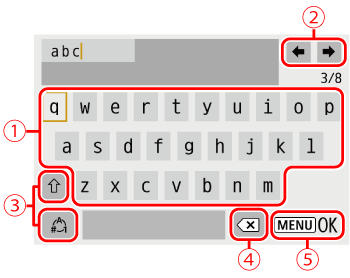
 | • Entering characters Press the / / / buttons or turn the  dial to choose the key of your desired character, and then press the button. dial to choose the key of your desired character, and then press the button. |
 | •Moving the cursor Choose [  ] or [ ] or [  ] and press the button. ] and press the button. |
 | •Switching input modes Choose [  ] , press the button to switch to capital letters. ] , press the button to switch to capital letters.
Choose [  ] , press the button to switch to numbers and characters. ] , press the button to switch to numbers and characters. |
 | •Deleting characters Choose [  ] and press the button.
The previous character will be deleted. ] and press the button.
The previous character will be deleted. |
 |
•Confirming input After pressing the  button, press the / buttons to choose [OK] , press the button. button, press the / buttons to choose [OK] , press the button.
|
NOTE
- To return to the previous screen, press the button.